How to track a shipping container on iPhone
Choose the right shipment identifier, check carrier milestones and keep the latest ETA in context.
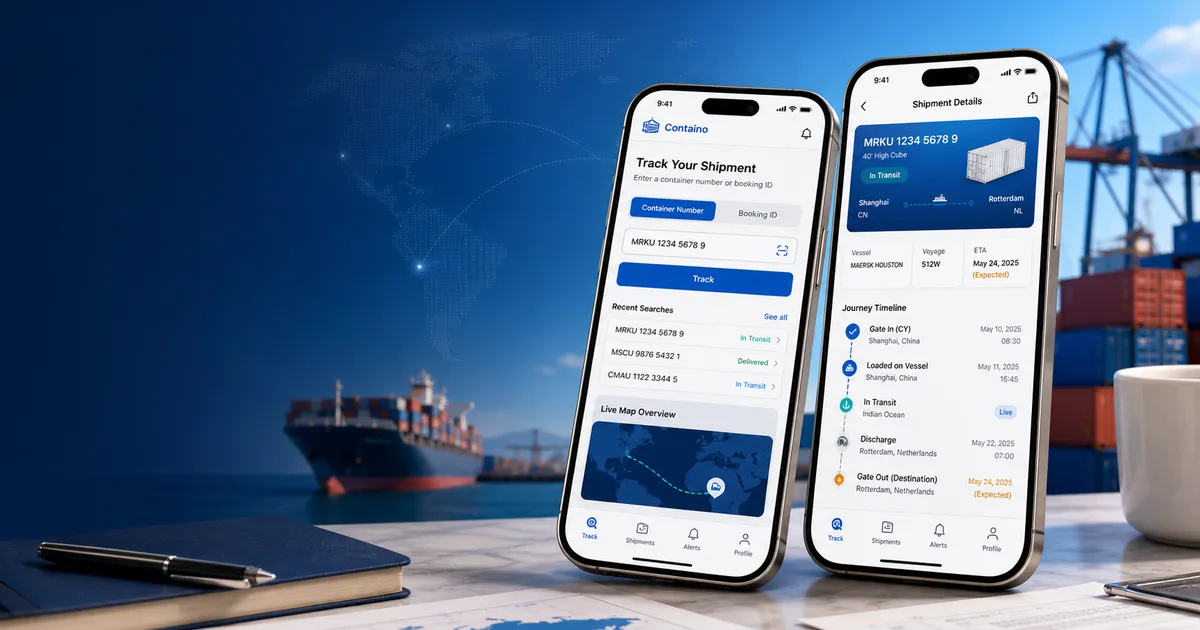
Start with the shipment identifier
Open Containo and choose container number or booking ID. Copy the identifier from your shipment documents and check it before submitting. A booking ID is a different input from a container number: choose the matching mode. Booking lookup depends on the carrier and the information available from the tracking provider.
Select the carrier when you know it
Choose the shipping line shown on your documents. Containo includes a carrier picker, but a listed carrier does not guarantee that every booking or container can be found. If the result is unavailable, check the number and carrier with the party handling the shipment. Do not change the identifier to make it resemble another carrier’s format.
Read the result as a sequence of events
Shipment details show the milestones, locations, vessel or voyage and estimated dates supplied by the provider. Read the latest event alongside its date, and distinguish expected events from actual ones. An ETA describes an estimate rather than a promise. The event location does not represent a continuous GPS position.
Use the carrier for decisions about the shipment
Keep Containo as a convenient view of the returned shipment information. For an urgent delay, missing update or pickup decision, check the official carrier tracking page and contact your forwarder or carrier. This website explains the app workflow; enter shipment identifiers in the app, not on this page.
Related guides
Check your shipment in Containo
Use a container number or supported booking ID in the iPhone app.